
Creating a page
A detailed guide for every step of creating
a memorial page for your loved ones.
First Steps
Getting StartedBefore you begin
Follow these simple steps to activate your memorial page and attach the memorial plaque.
-
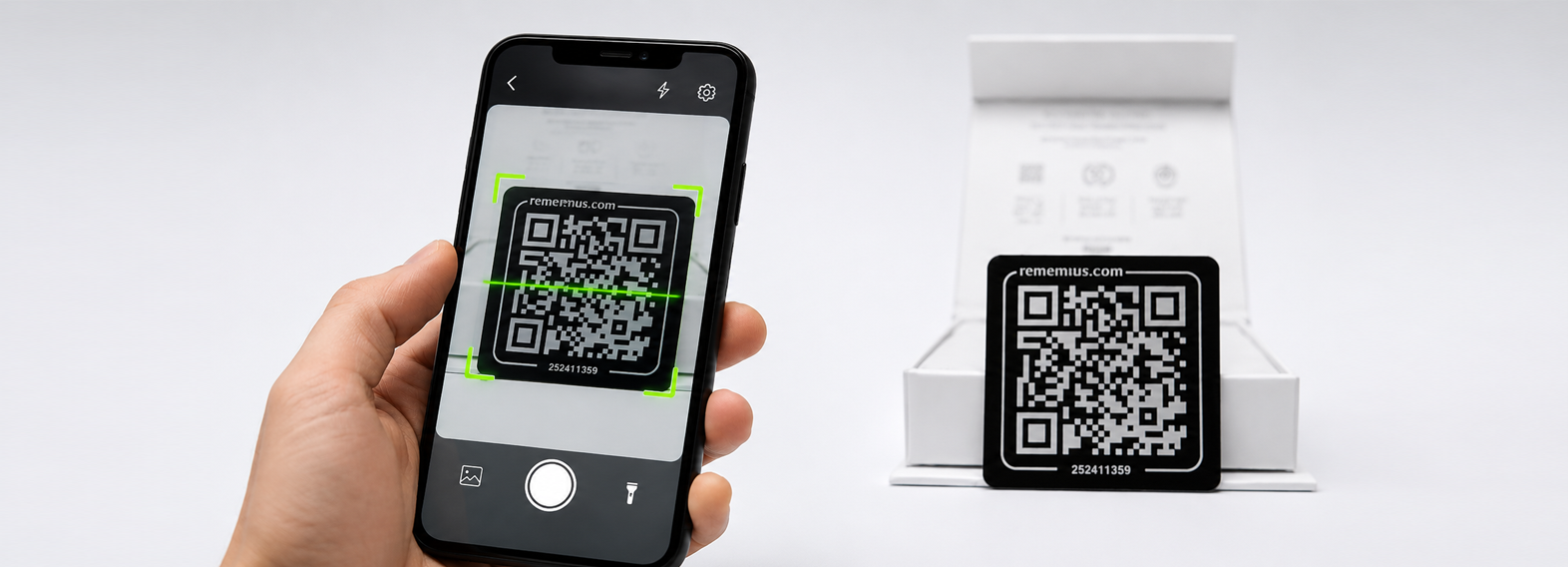
Scan the QR code.
-
Log in to your account or register.
-
Enter all details and upload a photo.
-
Clean the monument with the included alcohol wipe.
-
Attach the code to the monument.
Scan the QR code
Scan the unique QR code with your smartphone camera to start setting up the memorial page.

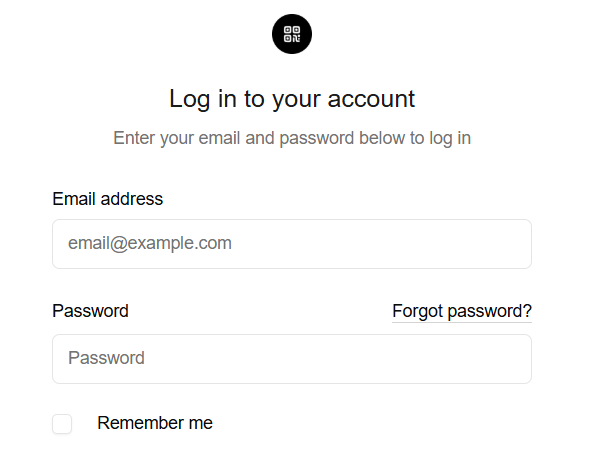
Log in or register
Log in to your account or create a new one.
Enter details
Fill in all required information and upload photos.
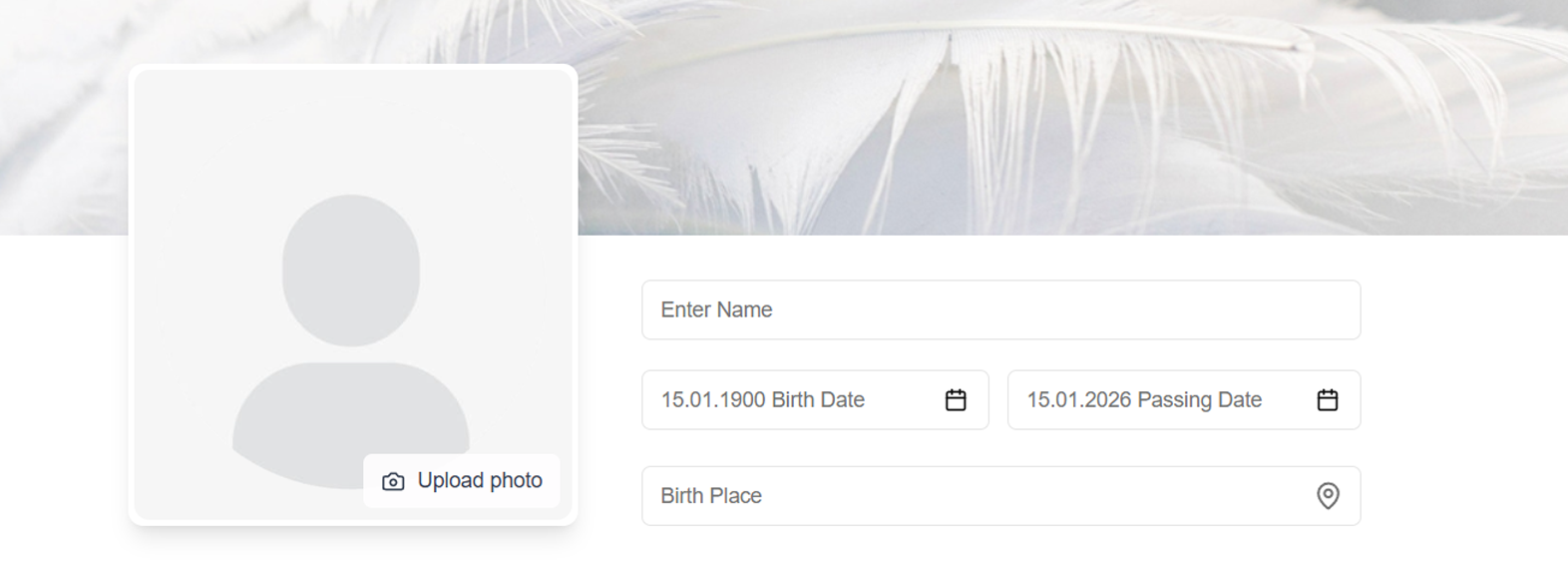

Clean and Attach the code
Clean the monument surface and attach the code. After that, the memorial page will be permanently linked to the selected place.
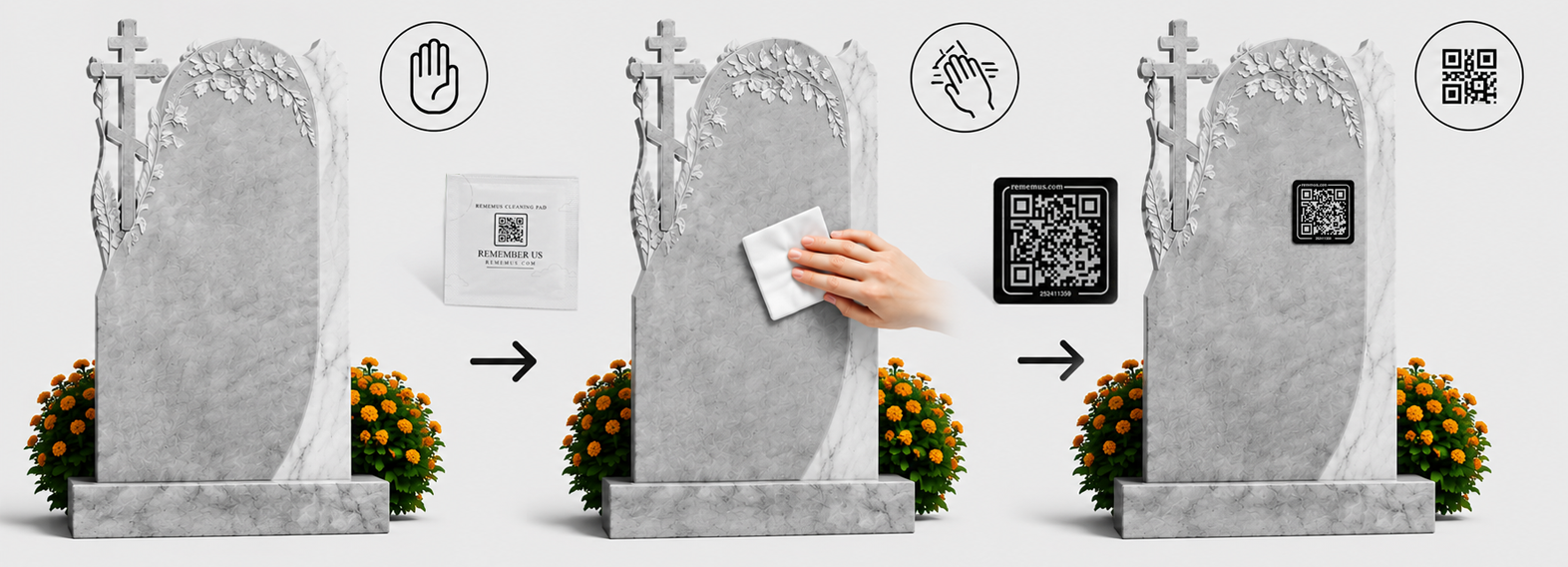
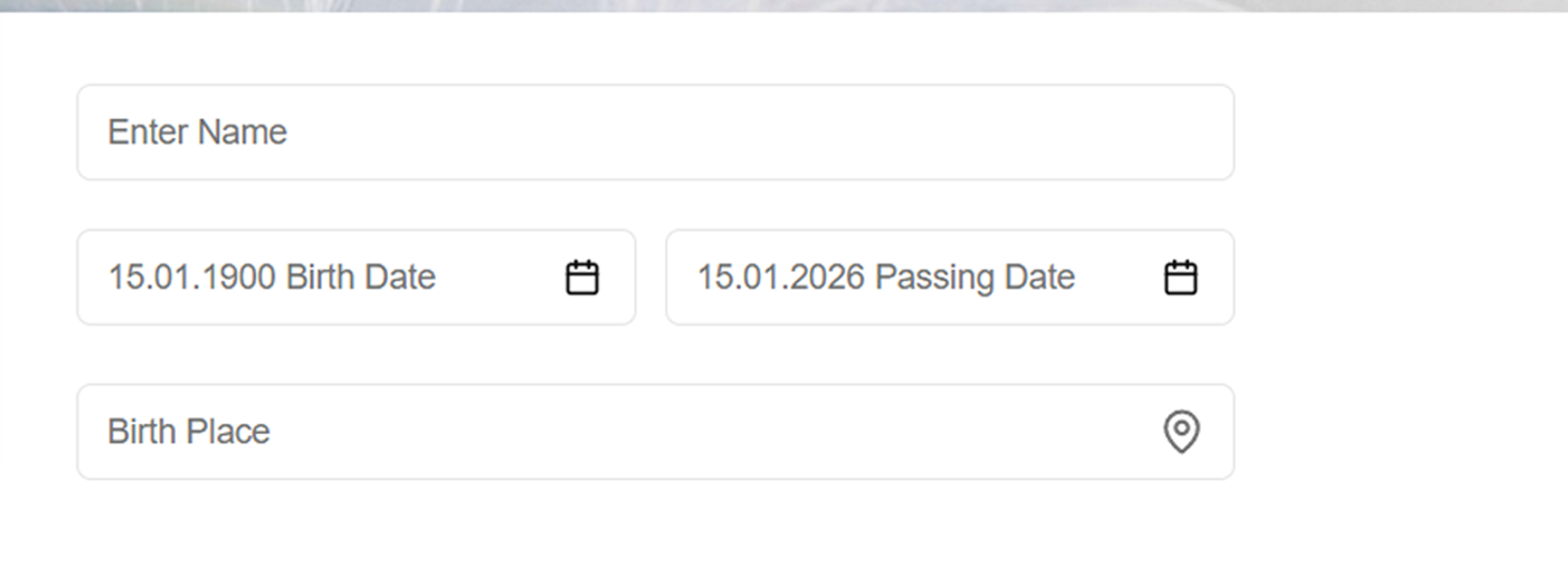
1. Main information
Profile basicsFirst steps
Fill in the person's basic details to create the foundation of the memorial page.
What you can fill in:
-
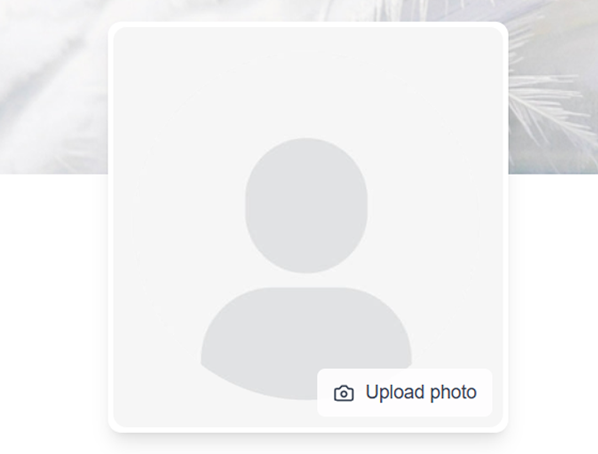
Choose the person's profile photo.
-
Enter the name.
-
Select the birth date and death date.
-
Enter the place of birth.
-
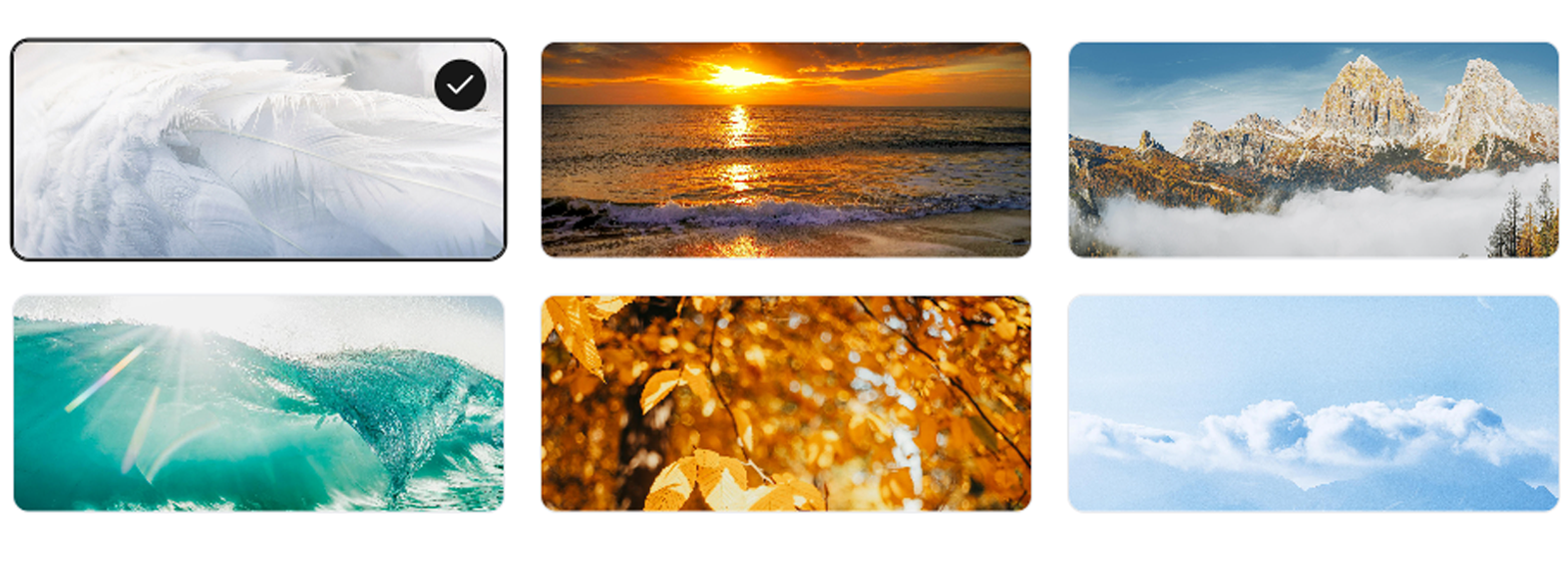
Choose a background photo from the available cover options or upload your own image.
-
Page visibility settings. The page can be visible only by QR code or direct link, and hidden from the memorial page list and search engines such as Google and Bing.
Main information
Enter the name, select the birth date and death date, and enter the place of birth.
Profile photo
Choose the person's profile photo
Visibility
The page can be visible only by QR code
Choose a background photo (cover)
Choose a background photo from the available cover options or upload your own image.
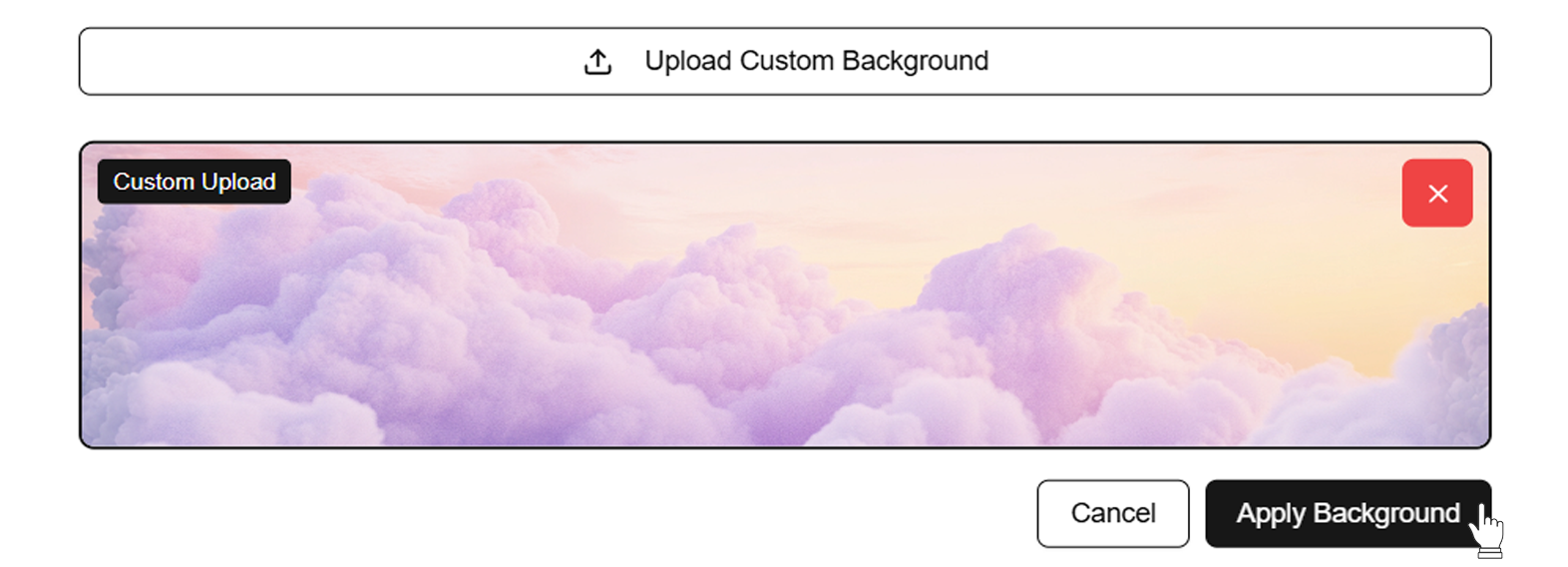
Upload a cover image
Upload your own image to use as the page cover.
2. Photo gallery
MediaMemories in photos
Upload photos to preserve visual memories.
Features
-
You can upload up to 12 photos to the memory gallery.
-
A built-in photo rotation tool is available if an image uploads upside down.
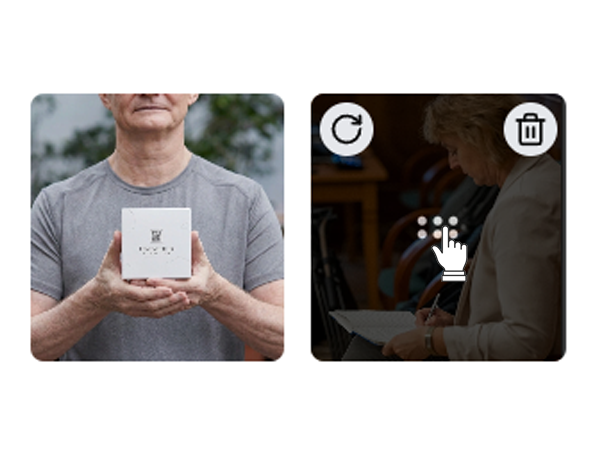
-
You can reorder photos by dragging them to the desired position.
-
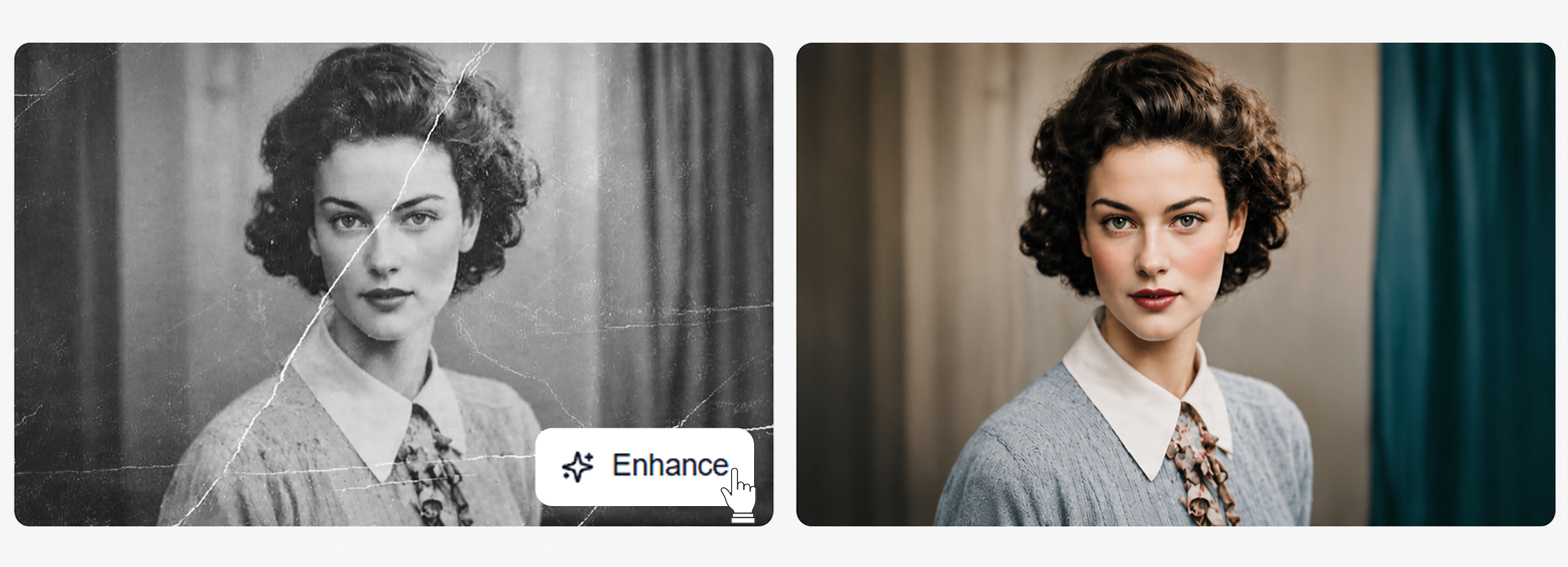
AI photo retouching is planned for a future update.
-
This block can be disabled if you do not want to show photos on the page.
Media upload
Save important moments by uploading up to 12 photos
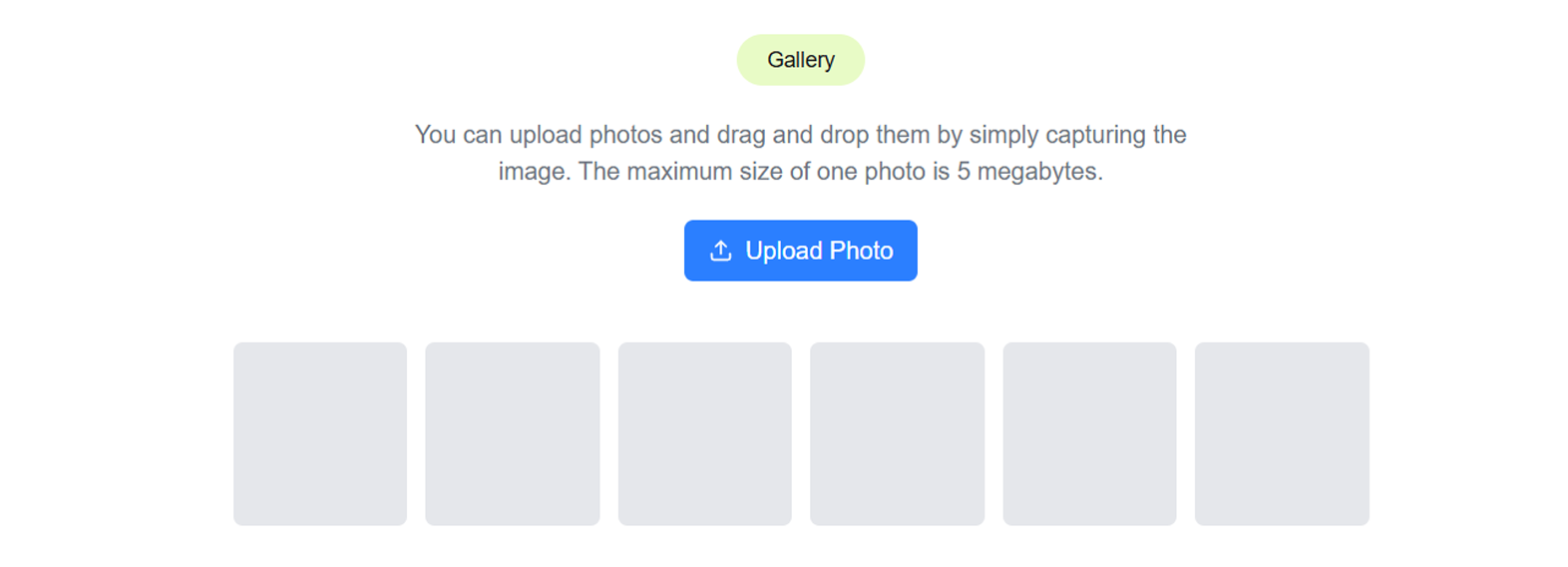
Photo management
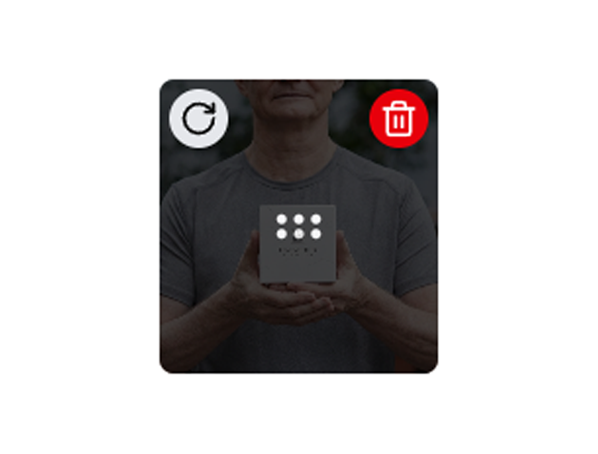
Trash and photo deletion.
Sorting
You can easily reorder photos by dragging them to the desired position.
AI processing
In the future, we will add AI integration for automatic retouching and restoration of old photos.
Gallery viewing
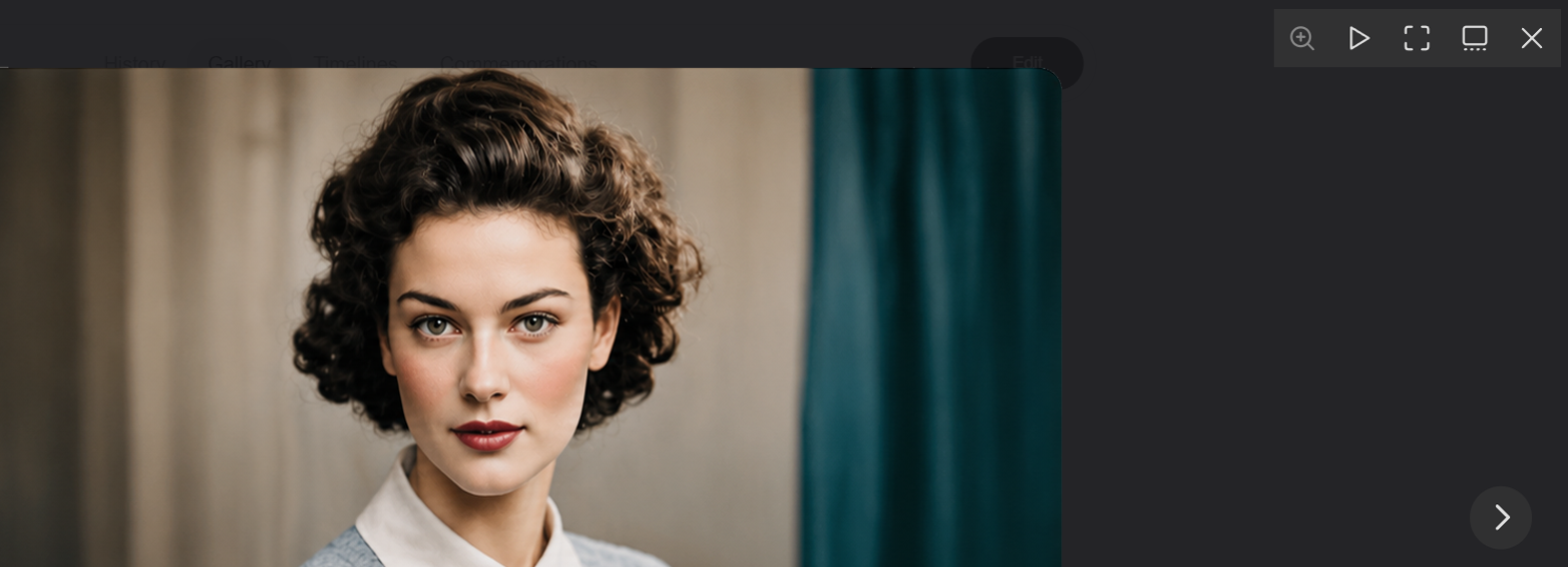
Fullscreen photo viewing with convenient navigation for memorial page visitors.
3. Family tree
Family relationshipsConnection between generations
Add family members to recreate the family story.
Family tree options:
-
You can add grandparents, mother, father, partner or spouse, brothers, sisters, children, and other relatives.
-
You can upload a photo (avatar) for each relative.
-
If a relative already has a memorial page on the site, you can enter its code to link the profiles.
-
This block can be disabled if you do not want to show the family tree.
Who can be added
grandparents, mother, father, partner or spouse, brothers, sisters, children, and other relatives.
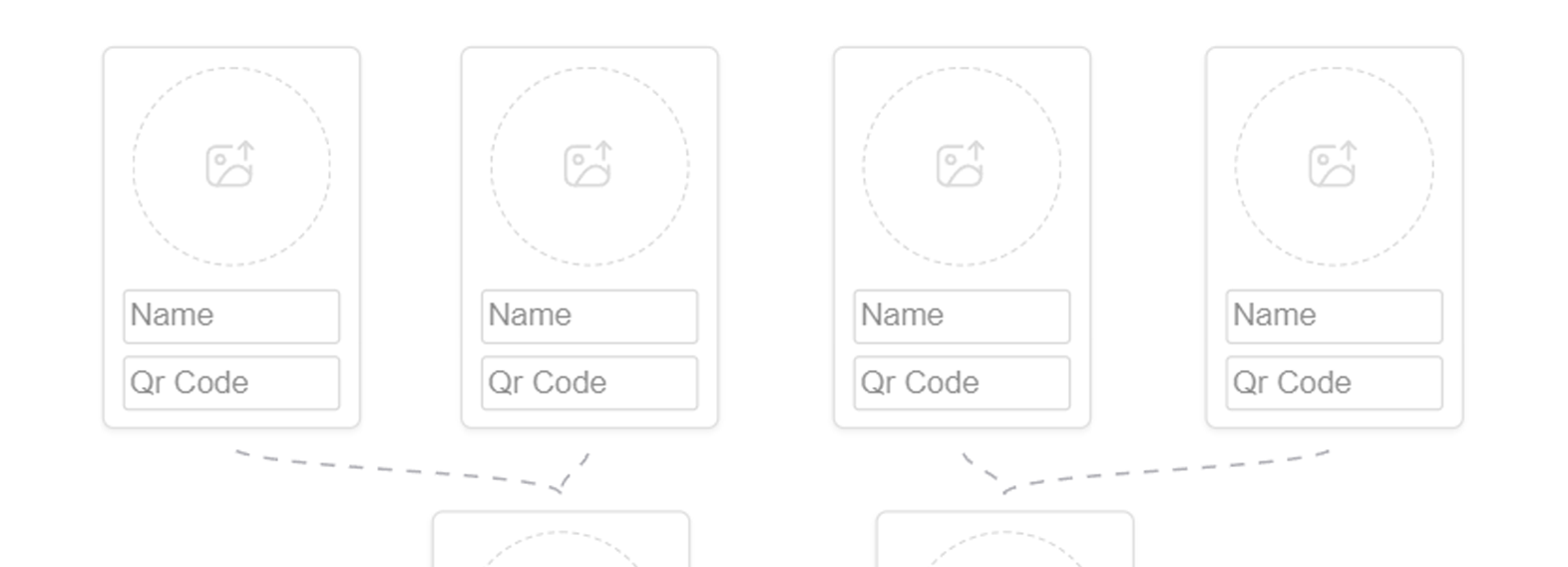
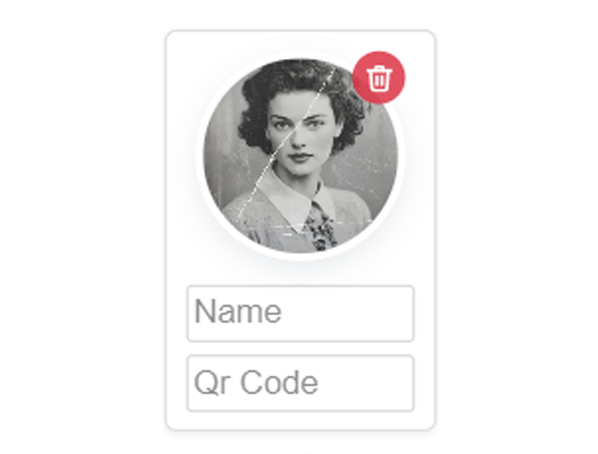
Relative photo
You can upload a photo (avatar) for each relative
The block can be disabled
if you do not want to show the family tree.
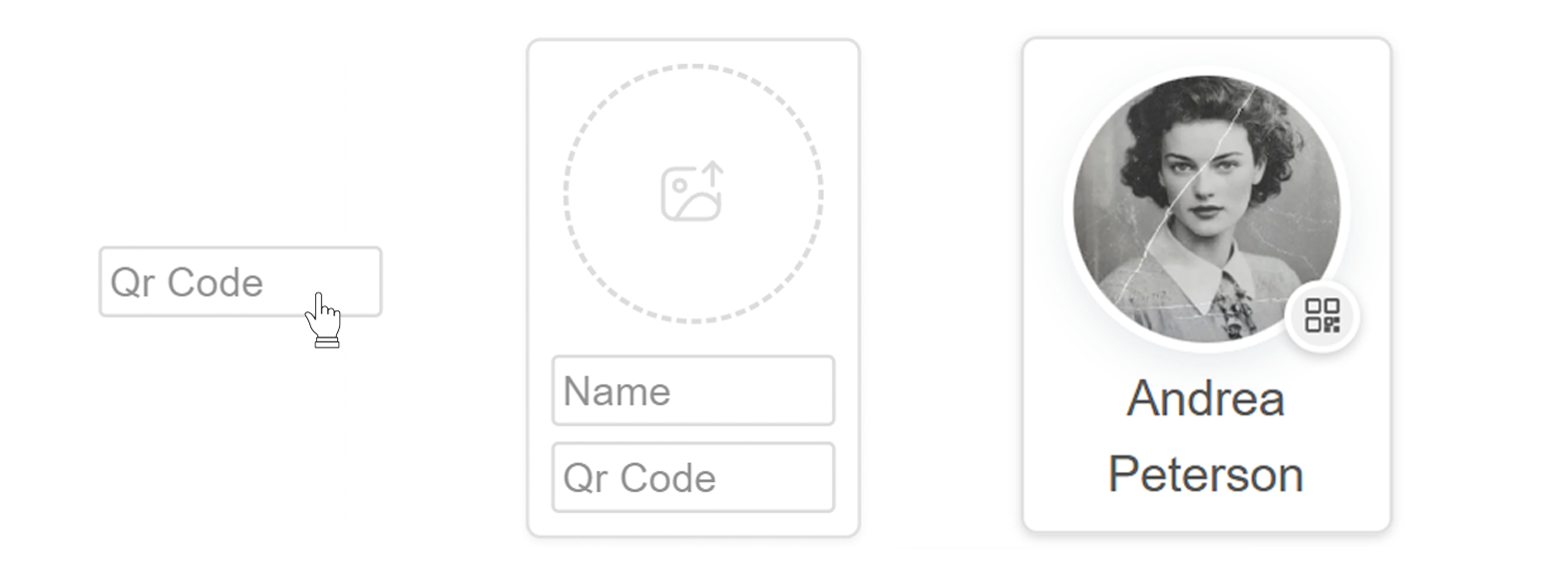
Relative memorial page
If a relative already has a memorial page on the site, you can enter its code to link the profiles.
4. Timeline
Life eventsChronology
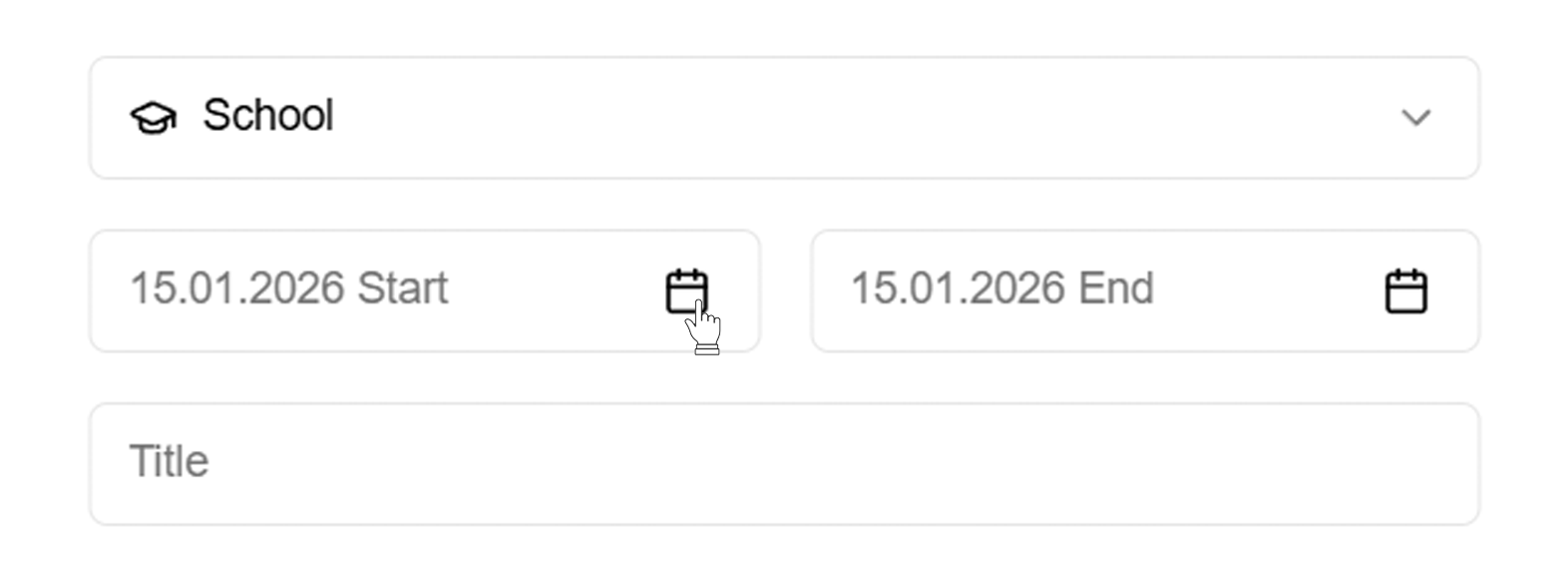
Add important milestones from the person's life: education, work, wedding, children's births, and other meaningful events.
Functionality:
-
Create, edit, and delete any events.
-
A photo can be attached to each event.
-
Specify exact start and end dates for an event.
-
The block can be easily disabled if it is not needed on the page.
Edit any events
Create, edit, and delete any events with start and end dates.
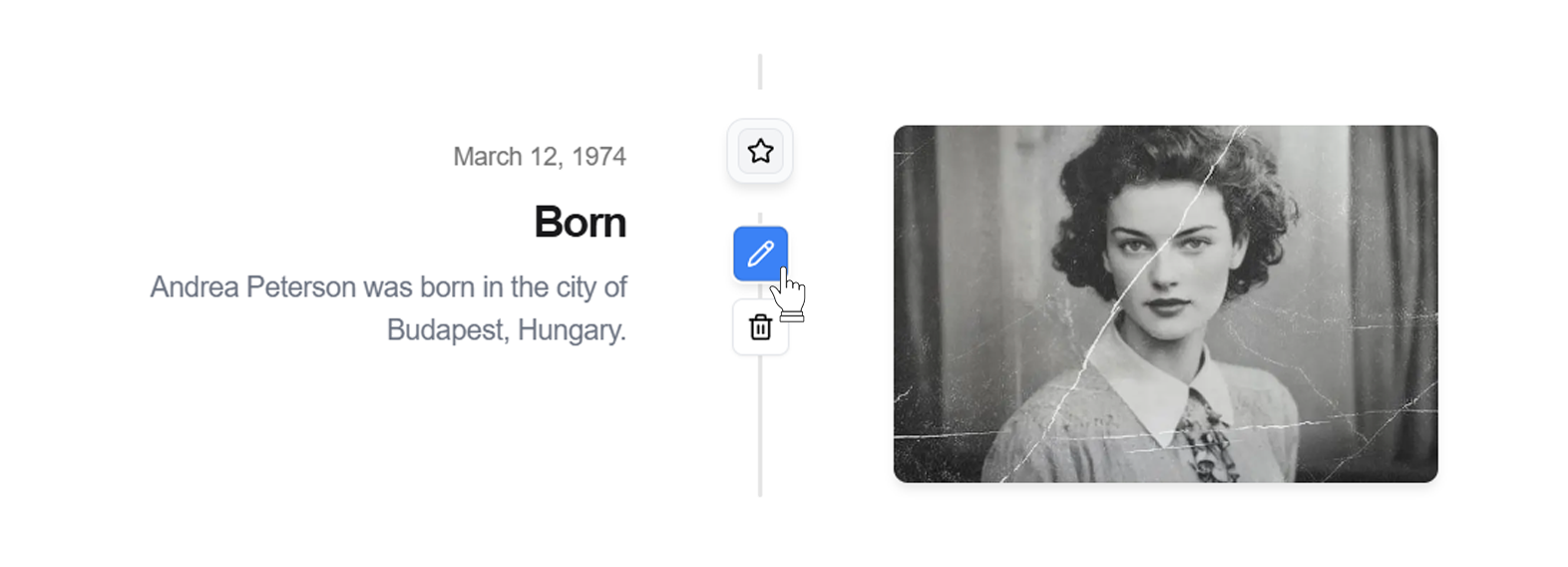
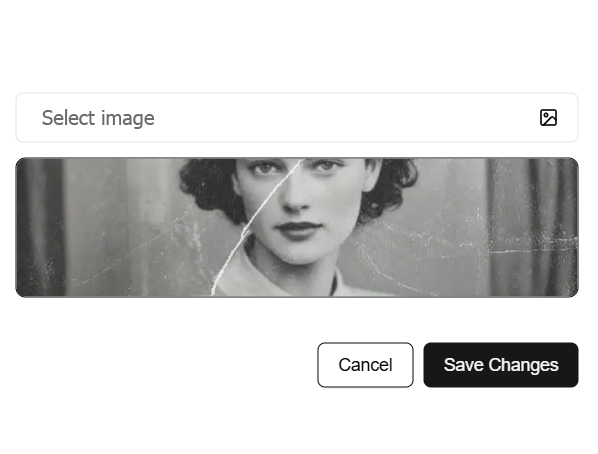
Photos for events
Attach photos to any events.
The block can be easily disabled
Disable it if the section is not needed on the page.
Event dates.
Specify either a period (start and end date) or a single date for events that happened on a specific day.
5. Memory (Characteristics)
AI generationIntelligent biography
Add character traits and interests. AI can use them to write a beautiful biography.
Section features:
-
Add notes about hobbies, habits, favorite books, life principles, and other details.
-
Press the Generate Biography & Motto button, and AI will create a detailed biography and a short motto based on the entered characteristics. Generation can be disabled.
-
All generated texts can be edited manually before publication. The entire block can also be disabled.
-
Expanded webhook retry policy and dead-letter queue.
This block can be disabled if you do not want to use it.
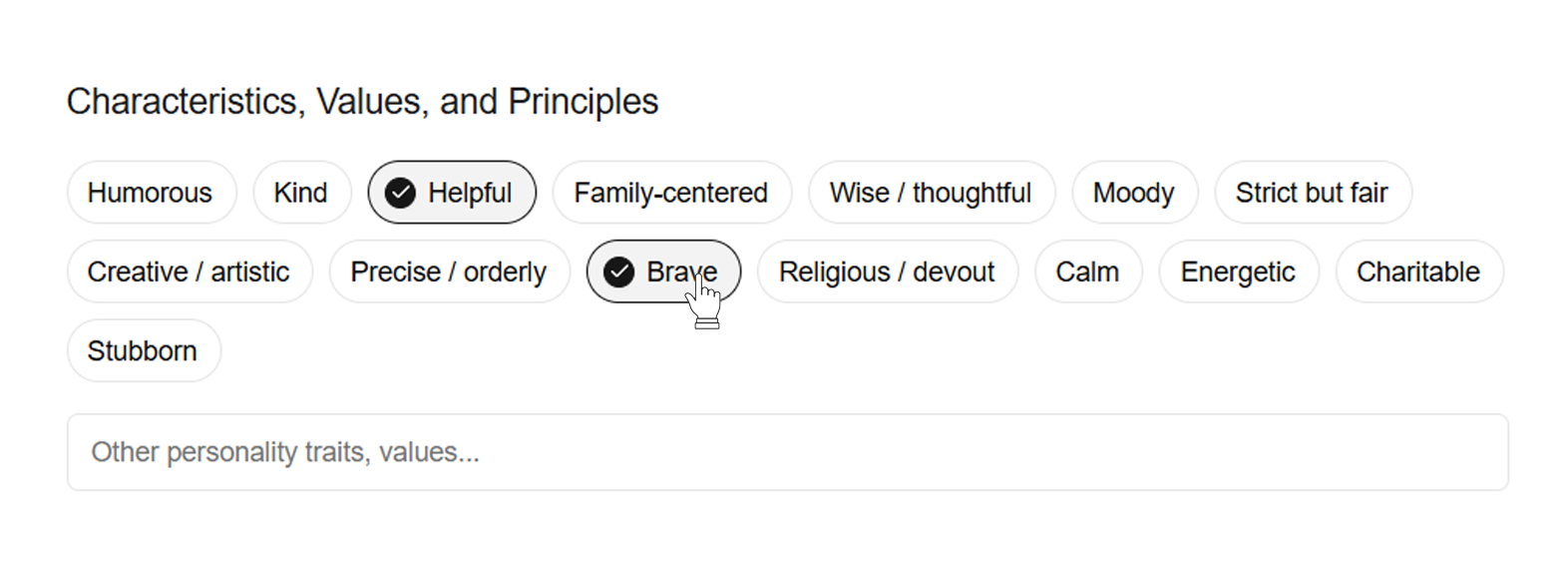
Character traits
Describe the person's unique character traits so visitors can better understand what they were like in life.
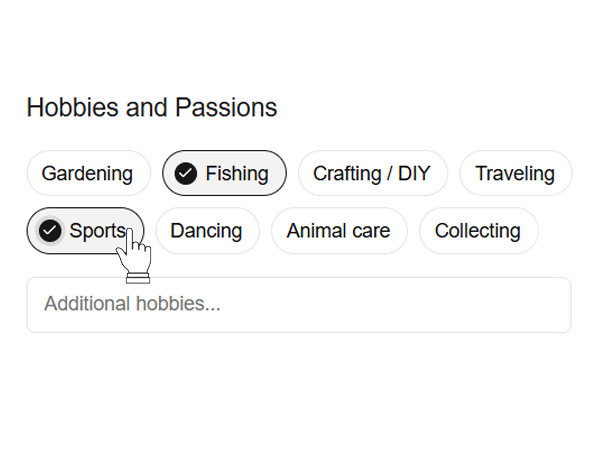
Habits and hobbies
Add information about favorite activities, hobbies, and habits.
6. Burial place
NavigationHow to find it
Add burial place details so loved ones can find the monument more easily.
What you can fill in:
-
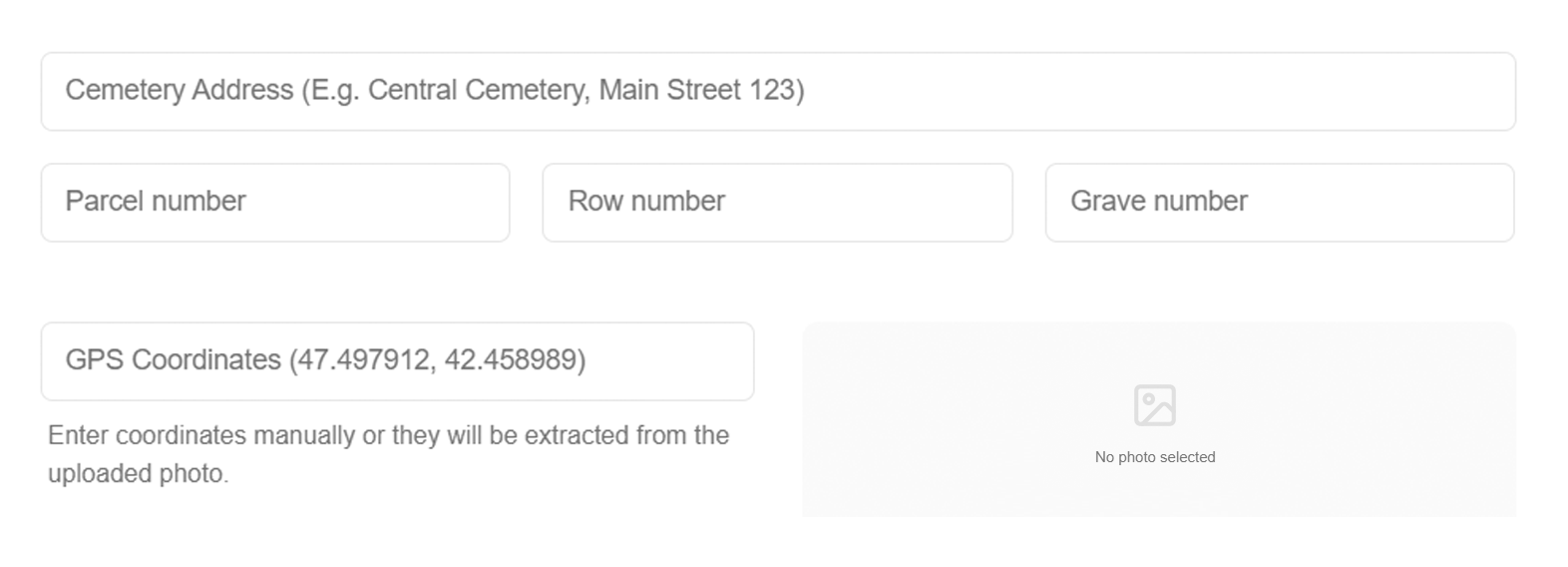
Enter the cemetery address, sector or row number, and plot number.
-
Add exact GPS coordinates for convenient map navigation.
-
Upload a photo of the monument with geodata enabled. The system will automatically extract the coordinates from the photo. The page includes built-in instructions for enabling geotags on iOS and Android.
-
The block can be easily disabled if you do not want to share this information.
Exact coordinates
Mark the exact burial place on the map so it can be easily found even in a large cemetery.
Route building
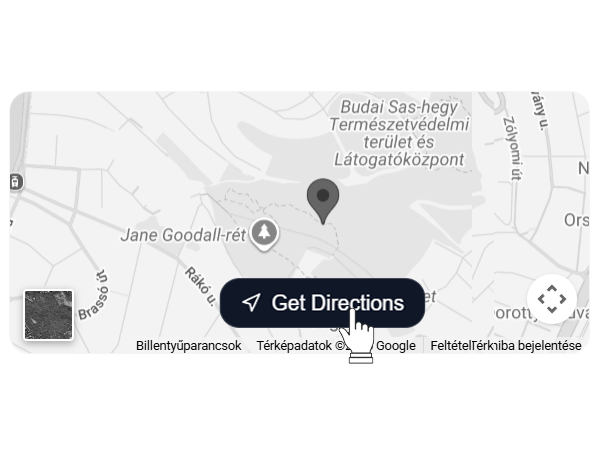
Build a route directly to the grave from any device.
7. Words of remembrance
For visitorsComments
Manage the section where visitors can leave memories and words of support.
Section functions:
-
Any page guest can leave words of condolence in a dedicated block.
-
Guests can add memory photos to their entries.
-
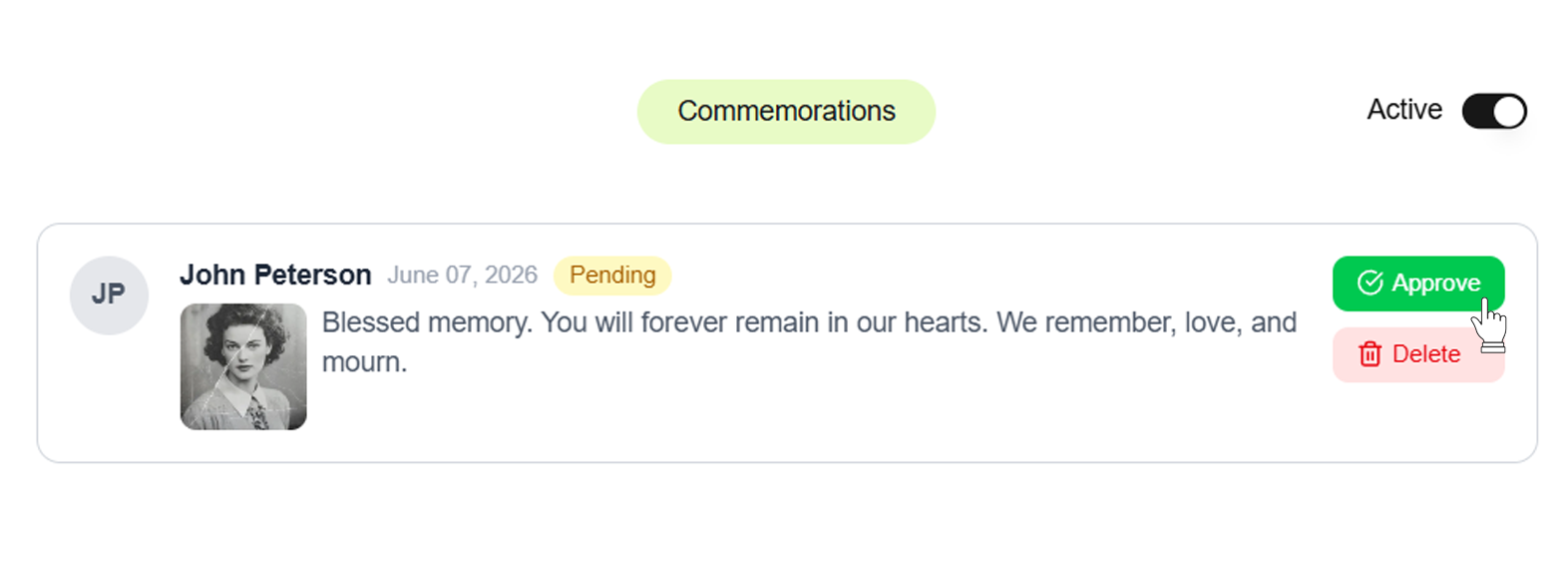
All comments are subject to moderation. You can review, approve for publication, or delete entries.
-
If you do not want people to leave comments, this block can be fully disabled in the settings.
Memory book
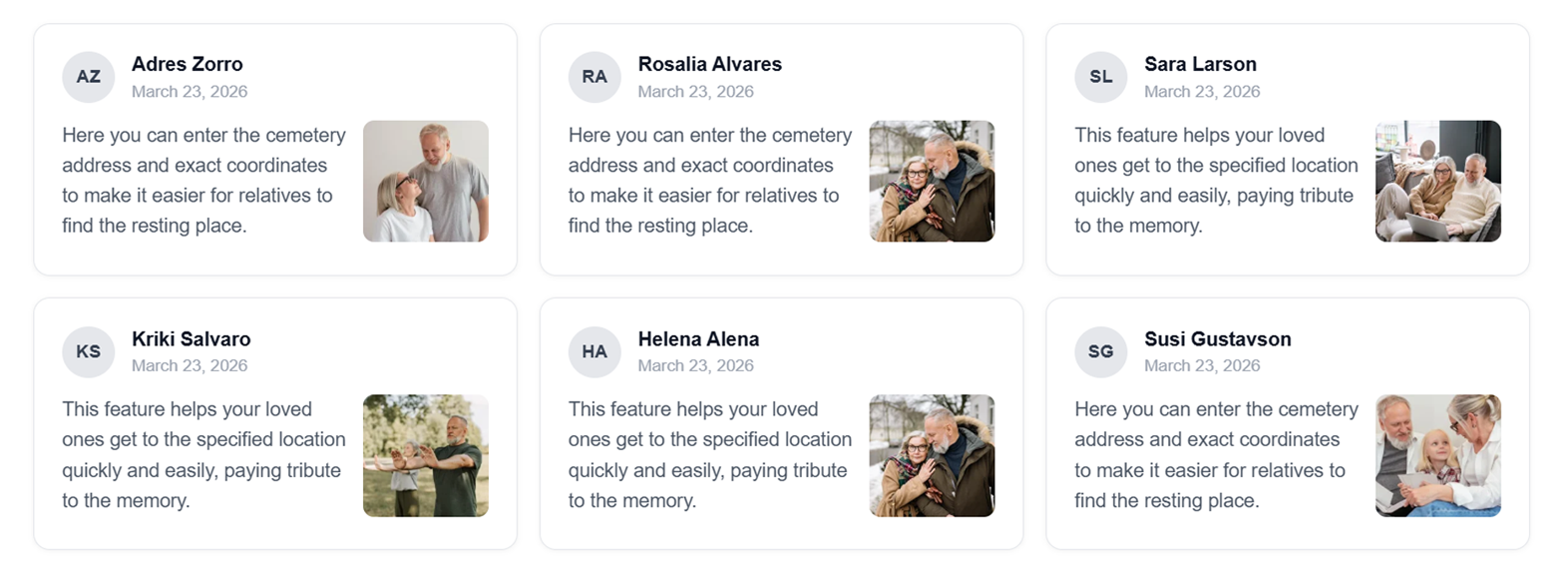
Each page visitor can leave sincere words of condolence and support in a dedicated section.
Virtual candles
Visitors can light a symbolic memorial candle as a sign of respect.

Shared stories
Friends and colleagues can share unique stories from life.
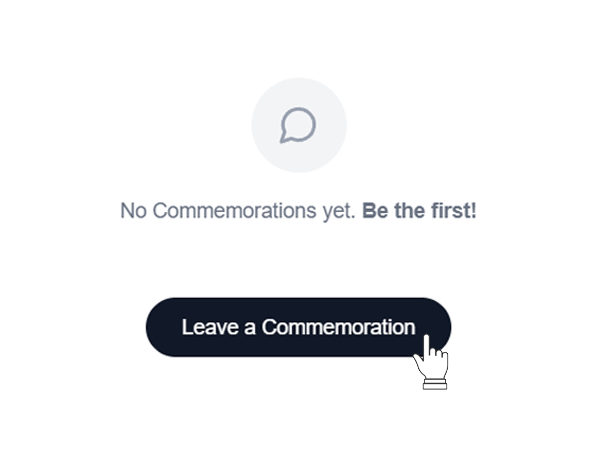
Photo attachment
A shared photo can be added to a message to better convey the atmosphere of the moment.
Moderation
The memory book is under your control: you can moderate and delete inappropriate messages.